Reviewed September 24, 2026 against source v1.7.41. Features and fixes are labeled by version. Check release availability.
What TinySA support means
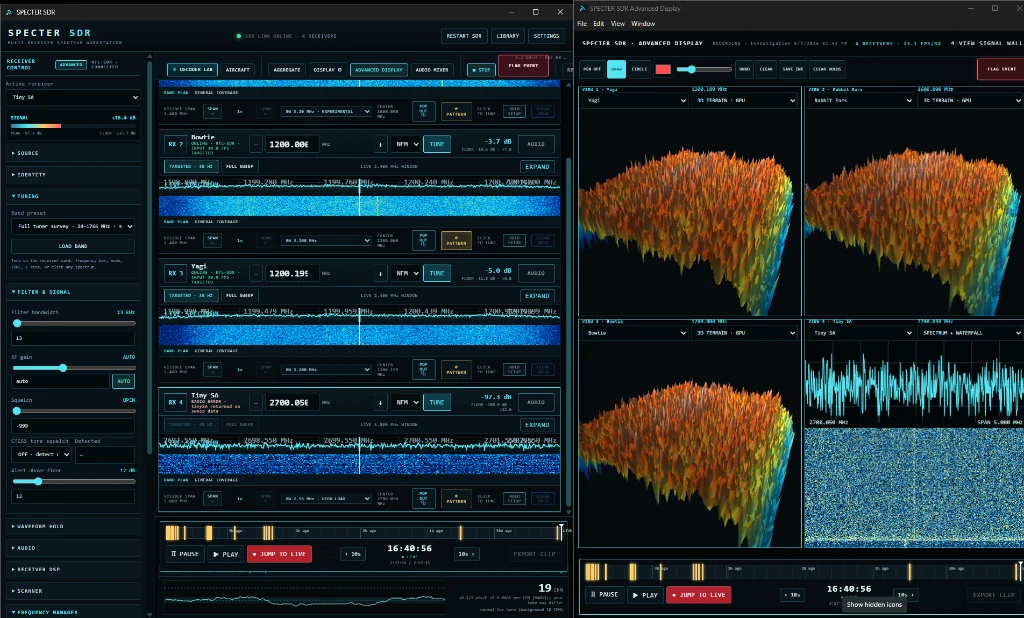
SPECTER supports TinySA-family instruments that identify through the TinySA USB serial shell. The analyzer appears beside connected radios as a named spectrum-only source. SPECTER asks the instrument for its actual sweep limits instead of assuming a model, so available spans follow the connected hardware. A TinySA Ultra+ can reach approximately 5.4 GHz, while earlier models report lower limits.
Connect and enable the analyzer
- Connect the TinySA to the Windows computer with a USB data cable and switch the instrument on.
- Open Settings, then System.
- Enable Spectrum analyzers (TinySA) and save settings.
- Use Check USB Connection if the analyzer does not appear.
- Select the TinySA from the active-source list and assign a clear name.
TinySA uses the Windows USB CDC serial path and normally needs no custom driver. A charge-only cable can power the instrument without creating a data connection, so try a known data cable before changing Windows drivers.
Analyzer controls
| Control | Purpose |
|---|---|
| Center frequency | Places the selected sweep around a specific part of the instrument's supported range. |
| Sweep span | Selects widths from focused local sweeps through the full device-reported range. |
| Sweep points | Choose 101, 145, 290, or 450 points, subject to the instrument-reported ceiling. More points add frequency detail; wide-span sweep time is dominated by span and resolution bandwidth, not simply point count. |
| Resolution bandwidth | Use automatic RBW or select 3, 10, 30, 100, 300, or 600 kHz when the instrument supports it. |
| Attenuator | Use automatic attenuation or select 0, 10, 20, or 30 dB for strong-signal environments. |
| Low-noise amplifier | Enable the TinySA LNA when appropriate for weak signals and the connected model. |
Visualize, record, and review
TinySA sweeps are translated into the same timestamped spectrum-frame format used by SPECTER's visual pipeline. You can place the analyzer in the main workstation or Advanced Display, view spectrum and waterfall history, preserve its trace in a recording session, and review it against the shared timeline. The analyzer remains independently identified so its data is never mistaken for IQ from a radio receiver.
Analyzer-specific alerts
Enable Spectrum analyzer alerts only when you need them. A wide analyzer sweep can encounter many active signals, so SPECTER uses a separate threshold measured in dB above the analyzer's own sweep floor. Start conservatively, observe the local baseline, and use the analyzer's per-source alert override when the general threshold is too active.
Functions that require a radio
- Audio monitoring and demodulation modes
- IQ recording, replay, and constellation views
- Decoder Lab, ADS-B, and external protocol engines
- Coherent receiver pairing and relative-amplitude radio direction comparison
- Radio squelch scanning and CTCSS detection
Set an exact start and stop
- Select the tinySA and open its analyzer controls.
- In SWEEP RANGE, enter Start and Stop in MHz. For 100 MHz through 5.3 GHz, enter 100 and 5300: the span is 5200 MHz.
- Press APPLY RANGE, or choose FULL RANGE for the connected instrument's reported limits.
- Allow a complete sweep and check the confirmed range and arriving trace, not only the text you entered.
v1.7.41: center and span are sent as one range change and confirmation follows the current instrument range. Earlier versions could briefly sweep a new width around the old center, or report that a valid range did not take. See version availability.
Wide sweeps, RBW, and expected update time
Start with Resolution BW: Auto. Sweep span is the total frequency range; resolution bandwidth is the measurement filter width. They are not interchangeable. A broader span or narrower RBW takes longer to measure.
| RBW | Reference sweep time across 5.4 GHz |
|---|---|
| Auto | About 9.5 seconds |
| 600 kHz | About 15.5 seconds |
| 300 kHz | About 28 seconds |
| 100 kHz | About 90 seconds; not a usable live setting at this span |
These are reference measurements from an Ultra+ documented with the implementation, not guaranteed rates for every model, firmware, USB connection, or computer. SPECTER refuses RBW choices it estimates would take more than a minute per sweep at the current span. Prefer Auto for a full-range overview, then narrow the span for fine-resolution inspection.
What changed after the wide-span freeze
From v1.7.39, SPECTER keeps the instrument's autonomous display sweep paused between its own requested scans. This avoids a delayed pause acknowledgement being mistaken for the next scan's response. The app still requests measured scans and gives the instrument its own sweep back when it releases the port. A deliberate pause between app scans is not, by itself, a fault.
If the app stops receiving new traces, first note the installed version, exact Start/Stop, RBW, and sweep-point count. Test a narrower span and Auto RBW. If Auto is already shown but you suspect a retained hardware setting, select 600 kHz and then Auto to send the setting again. Do not assume adding other radios proves a USB fault: compare the same range with and without them and collect the sidecar log.
Radio features remain separate
ACTIVITY WATCH, audio recordings, and Decoder Lab require a receiver with samples or audio. They do not become available because a tinySA appears in the same workspace. Enable Spectrum analyzer alerts only when wanted, and use the analyzer's own receiver alert switch and threshold to avoid broad-band activity dominating radio alerts.